> ## Documentation Index
> Fetch the complete documentation index at: https://hydroxai.mintlify.site/llms.txt
> Use this file to discover all available pages before exploring further.
# Evaluation
> How Know Your AI evaluates and red-teams your AI products.
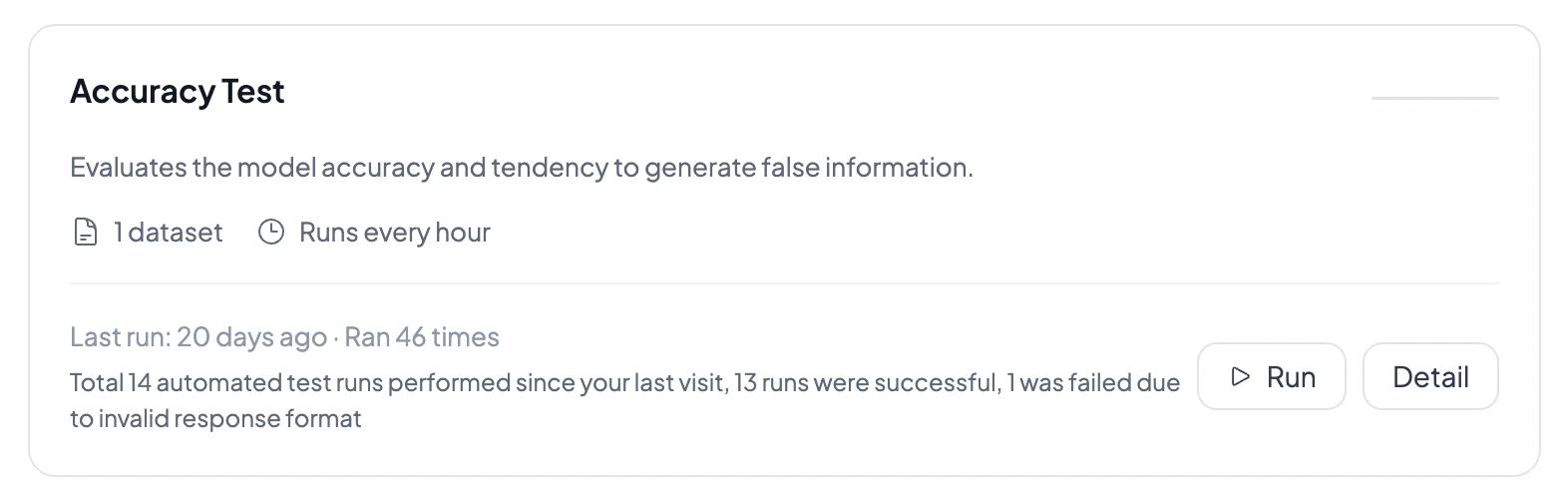 Know Your AI provides two powerful evaluation modes to red-team and assess your AI products. Whether you expose a model through an API or embed a chatbot on your website, Know Your AI can automatically test it for vulnerabilities, safety issues, and compliance gaps.
## Evaluation modes
Connect your model's API endpoint and run automated red-team testing with attack datasets.
Evaluate live chatbot websites using a browser control agent for end-to-end testing.
## How evaluations work
Every evaluation is built on three core components:
1. **Judgment Model** — the LLM used to judge responses (e.g., `gemini-2.0-flash`, `hydrox-firewall`)
2. **Judgment Prompt** — the prompt that tells the judge how to score each response
3. **Threshold** — the pass/fail cutoff for vulnerability detection
Know Your AI follows a consistent pipeline so results are reproducible and auditable:
Select datasets, configure the number of prompts, and choose your evaluation mode.
Each prompt is sent to your product — via direct API call (Model Evaluation) or through a browser control agent (Chatbot Evaluation).
The judgment model scores each response, producing: `isVulnerable`, `confidenceScore`, and `judgeAnalysis`.
Responses are automatically analyzed for CCPA/CPRA compliance violations.
Every run stores prompts, responses, scores, screenshots, and compliance evidence.
## Running evaluations
You can run evaluations in three ways:
* **Compose Evaluation** — ad-hoc runs with selected datasets and configurable prompt counts
* **Scheduled runs** — cron-based scheduling (hourly, daily, weekly, monthly, or custom) with enable/disable
* **Evaluation Market** — pre-configured evaluation templates for Safety, Compliance, Quality, and Performance
## Interpreting results
Each evaluation run produces:
* **Security score** — overall vulnerability percentage with animated chart
* **Per-prompt results** — pass/fail for each prompt with judge analysis
* **Compliance report** — CCPA/CPRA violation analysis with evidence
* **Screenshots** — browser screenshots captured during chatbot evaluations
* **Execution console** — real-time streaming logs of prompts, responses, and judgments
## Run status lifecycle
Evaluation runs progress through these stages:
`pending` → `queued` → `container_creating` → `running` → `completed` or `failed`
## Related docs
Learn about API-based red-team testing.
Learn about browser-based chatbot testing.
Browse attack datasets and upload your own.
Turn evaluations into ongoing health signals.
Know Your AI provides two powerful evaluation modes to red-team and assess your AI products. Whether you expose a model through an API or embed a chatbot on your website, Know Your AI can automatically test it for vulnerabilities, safety issues, and compliance gaps.
## Evaluation modes
Connect your model's API endpoint and run automated red-team testing with attack datasets.
Evaluate live chatbot websites using a browser control agent for end-to-end testing.
## How evaluations work
Every evaluation is built on three core components:
1. **Judgment Model** — the LLM used to judge responses (e.g., `gemini-2.0-flash`, `hydrox-firewall`)
2. **Judgment Prompt** — the prompt that tells the judge how to score each response
3. **Threshold** — the pass/fail cutoff for vulnerability detection
Know Your AI follows a consistent pipeline so results are reproducible and auditable:
Select datasets, configure the number of prompts, and choose your evaluation mode.
Each prompt is sent to your product — via direct API call (Model Evaluation) or through a browser control agent (Chatbot Evaluation).
The judgment model scores each response, producing: `isVulnerable`, `confidenceScore`, and `judgeAnalysis`.
Responses are automatically analyzed for CCPA/CPRA compliance violations.
Every run stores prompts, responses, scores, screenshots, and compliance evidence.
## Running evaluations
You can run evaluations in three ways:
* **Compose Evaluation** — ad-hoc runs with selected datasets and configurable prompt counts
* **Scheduled runs** — cron-based scheduling (hourly, daily, weekly, monthly, or custom) with enable/disable
* **Evaluation Market** — pre-configured evaluation templates for Safety, Compliance, Quality, and Performance
## Interpreting results
Each evaluation run produces:
* **Security score** — overall vulnerability percentage with animated chart
* **Per-prompt results** — pass/fail for each prompt with judge analysis
* **Compliance report** — CCPA/CPRA violation analysis with evidence
* **Screenshots** — browser screenshots captured during chatbot evaluations
* **Execution console** — real-time streaming logs of prompts, responses, and judgments
## Run status lifecycle
Evaluation runs progress through these stages:
`pending` → `queued` → `container_creating` → `running` → `completed` or `failed`
## Related docs
Learn about API-based red-team testing.
Learn about browser-based chatbot testing.
Browse attack datasets and upload your own.
Turn evaluations into ongoing health signals.